


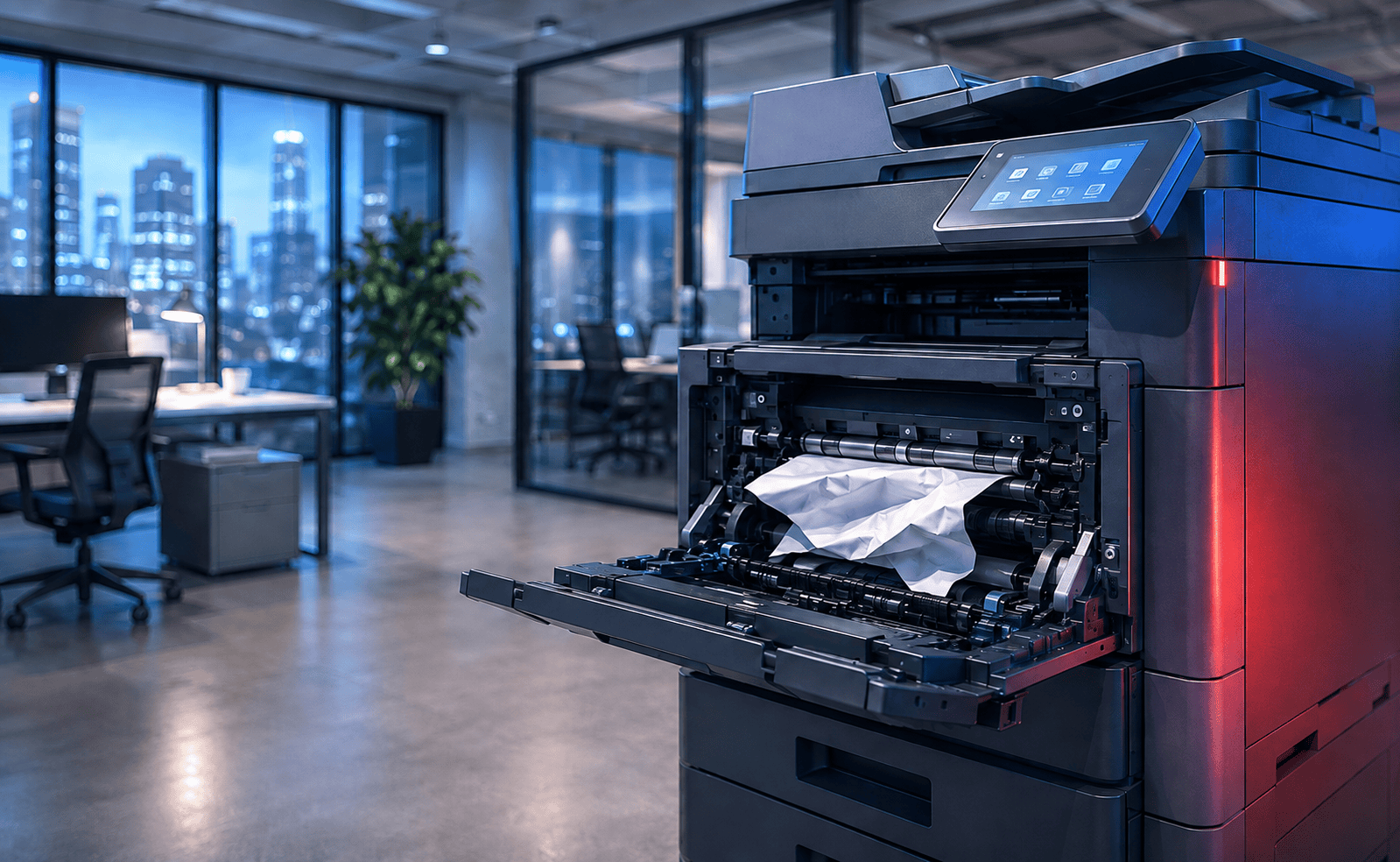
07 Aug Why Does My Photocopier Keep Jamming? 10 Causes & Fixes
A photocopier that keeps jamming is more than a minor inconvenience. Repeated paper jams can interrupt print jobs, delay scanning and copying, frustrate employees and, if paper is removed incorrectly, potentially cause further damage inside the machine.
An occasional photocopier paper jam can happen on almost any office printer or multifunction device. If the same machine starts jamming regularly, however, there is normally an underlying cause worth investigating.
The problem might be as simple as damp paper or incorrectly adjusted tray guides. It can also be caused by worn feed rollers, separation rollers, registration components, sensors, duplex units, fuser assemblies or other parts within the photocopier's paper path.
This guide explains why photocopiers keep jamming, how the location of the jam can help identify the problem, which internal copier components are commonly involved and when it is sensible to arrange a professional photocopier repair or service .
The most common causes of repeated photocopier jams include poor or damp paper, overloaded paper trays, incorrect paper settings, misaligned tray guides, worn pickup rollers, worn separation rollers, paper fragments obstructing sensors, duplex unit faults and problems further along the paper path.
What Causes a Photocopier to Keep Jamming?
Paper has to travel through a surprisingly complex route inside a modern multifunction photocopier. A sheet is collected from the paper tray, separated from the rest of the stack, transported through a series of rollers, aligned for printing, passed through the imaging and fusing process and finally delivered to the output tray or finishing unit.
A problem at almost any point in this process can produce a paper jam error.
Common causes include:
- Damp, curled or damaged paper
- Paper trays being overfilled
- Incorrect paper size or paper weight settings
- Paper guides positioned incorrectly
- Worn pickup rollers
- Worn separation rollers or separation pads
- Dirty or damaged paper sensors
- Torn pieces of paper remaining inside the machine
- Registration roller problems
- Duplex unit faults
- Fuser assembly problems
- Exit roller problems
- Finisher or stapling unit jams
- Automatic document feeder jams
If your office photocopier keeps jamming in exactly the same location, the position of the trapped paper can often provide a useful clue about which part is causing the problem.
Start by Checking the Paper and Paper Tray
Before assuming the photocopier has developed a mechanical fault, start with the paper itself.
Damp or curled office paper
Paper naturally absorbs moisture from the surrounding environment. Sheets stored in damp rooms, warehouses or near external doors can begin to curl or stick together.
When two sheets stick together, the photocopier's feed mechanism may struggle to separate them correctly. The result can be a misfeed or several sheets entering the machine at the same time.
Try replacing the existing paper with a fresh unopened ream and see whether the problem continues.
Overfilled paper trays
Most photocopier trays include a maximum paper level indicator. Filling above this line can prevent the feed and separation system from operating correctly.
If a paper jam started shortly after somebody refilled the tray, remove part of the stack and try again.
Incorrect tray guides
Adjustable paper guides keep each sheet aligned as it enters the paper path.
If the guides are too loose, sheets may enter at an angle. If they are pushed too tightly against the stack, they can restrict the movement of the paper.
The guides should sit gently against the edges of the paper without bending or compressing it.
Wrong paper size or paper type settings
A multifunction printer needs to know which paper size and media type is loaded in each tray.
If a tray contains A4 plain paper but the machine believes it contains another size or weight, the printer may use the wrong timings or paper path settings.
Check both the physical tray and the paper settings shown on the photocopier's touchscreen.
Worn Pickup Rollers and Feed Rollers
One of the most common mechanical causes of a photocopier repeatedly jamming is a worn paper pickup roller.
Pickup rollers are normally rubber components that make contact with the top sheet of paper in the tray and pull it into the machine.
Over thousands of print cycles the rubber surface can become smooth, polished or contaminated with paper dust.
Typical signs of a worn pickup roller include:
- The copier tries to feed paper but nothing leaves the tray
- Paper begins feeding and then stops
- The problem occurs mainly from one particular tray
- The machine feeds intermittently
- Paper enters the copier at an angle
Separation rollers and separation pads
The separation mechanism works alongside the pickup roller to prevent several sheets entering the machine simultaneously.
If a separation roller or separation pad becomes worn, two or more pages may feed together. These pages can overlap and eventually cause a paper jam further inside the copier.
What the Location of the Paper Jam Can Tell You
A useful troubleshooting technique is to note exactly where the paper stops.
| Where the paper jams | Possible causes |
|---|---|
| Immediately after leaving the tray | Pickup roller, separation roller, paper guides, paper quality or tray configuration |
| Before the imaging area | Registration roller, paper sensor or transport roller |
| Near the fuser | Fuser assembly, fuser rollers, temperature issue or paper media problem |
| During duplex printing | Duplex unit, duplex rollers, paper curl or unsuitable paper weight |
| Near the output tray | Exit rollers, delivery sensor or curled paper |
| Inside the finisher | Finisher transport rollers, stapler unit, booklet maker or paper alignment |
| Inside the document feeder | ADF rollers, separation pad, document sensor or damaged originals |
If your photocopier always jams in the same place, make a note of the jam code or location displayed on the touchscreen. This information can be particularly useful when speaking to a photocopier engineer.
Photocopier Parts Commonly Associated With Paper Jams
Modern office copiers contain many components involved in moving paper through the machine. Some are consumable or serviceable parts that naturally wear over time.
Pickup Roller
Collects the first sheet from the paper tray and begins feeding it into the printer.
Separation Roller
Helps ensure only one sheet enters the copier at a time.
Registration Roller
Aligns the paper before it reaches the imaging section so printing is correctly positioned.
Paper Sensors
Detect the position of paper throughout the internal paper path. A blocked or damaged sensor can trigger a false jam message.
Transport Rollers
Move the sheet between different sections of the photocopier.
Duplex Unit
Turns and redirects the paper when printing on both sides of a sheet.
Fuser Assembly
Uses heat and pressure to bond toner permanently to the page before it exits the copier.
Exit Rollers
Move completed pages from the machine into the output tray or finishing unit.
ADF Feed Rollers
Feed original documents through the automatic document feeder for scanning and copying.
Finisher Rollers
Move printed pages through optional stapling, folding and booklet-making accessories.
Why Does Paper Jam Around the Fuser?
If paper travels most of the way through the machine but jams near the final stages, the issue may be associated with the photocopier fuser unit.
The fuser uses heat and pressure to melt toner onto the sheet. Depending on the copier model, it can include a heated roller, pressure roller, fuser belt, separation claws and several sensors.
Fuser-related symptoms can include:
- Paper wrapping around a roller
- Pages becoming heavily creased
- Paper stopping immediately after the toner image has been transferred
- Repeated jam codes around the fuser area
- Loose toner or poor print quality alongside the jam
Why Does My Photocopier Jam When Printing Double-Sided?
If your machine prints single-sided pages normally but frequently jams when duplex printing, the problem may be within the duplex paper path.
When double-sided printing is selected, the sheet must travel through an additional set of rollers before being returned to the print engine for the second side.
Possible causes include worn duplex rollers, paper curl, unsuitable paper weight, damaged paper guides or an obstruction within the duplex assembly.
Testing the same document in single-sided mode can help determine whether the duplex unit is involved.
Photocopier Document Feeder Keeps Jamming
Not every photocopier jam involves the paper used for printing.
The automatic document feeder (ADF) fitted to the top of many multifunction printers has its own set of rollers, sensors and separation components.
If original documents jam while scanning or copying, check for:
- Staples or paperclips left in documents
- Torn or folded originals
- Very thin paper
- Labels or adhesive residue
- Worn ADF feed rollers
- Worn ADF separation pads
- Small fragments of paper inside the feeder
If only the document feeder is jamming while normal printing works correctly, the fault is likely to be isolated to the ADF rather than the main printer paper path.
Paper Jams Across Different Photocopier Manufacturers
The exact design of the paper path varies between manufacturers and models, but the underlying causes of paper jams are often very similar.
Xerox photocopier paper jams
A Xerox photocopier paper jam may relate to the paper tray, feed rollers, registration area, duplex path, fuser or finishing unit depending on the jam location shown by the device.
Konica Minolta photocopier paper jams
On a Konica Minolta multifunction printer, repeated paper jams should again be traced according to the displayed jam location. Paper feed assemblies, transport rollers, duplex paths and finishing options are common areas to investigate.
Ricoh copier paper jams
A Ricoh photocopier that keeps jamming may have a simple paper or tray issue, or a worn component within the feed, registration, fuser, duplex or output path.
Canon photocopier paper jams
Repeated Canon photocopier paper jams can often be narrowed down by checking which tray and paper path is affected and whether the fault occurs during simplex, duplex or finishing operations.
Kyocera printer and photocopier jams
A Kyocera printer paper jam that repeatedly appears from the same paper cassette may point towards paper feed components, while jams further through the machine require investigation of the transport and output path.
Sharp photocopier paper jams
With Sharp multifunction printers, recurring jams should be diagnosed using the position of the paper and the machine's on-screen jam guidance.
Toshiba copier paper jams
A Toshiba photocopier paper jam can originate from media handling, paper feed components, the duplex unit, fuser area or optional finishing equipment.
Lexmark printer paper jams
Business-class Lexmark printers and multifunction devices also use pickup, separation, registration, fusing and output systems that can cause repeated jams as components wear.
Can the Wrong Paper Cause Repeated Photocopier Jams?
Yes. Using paper outside the manufacturer's recommended specification can cause repeated feeding problems even when the photocopier itself is operating correctly.
Potential problem media includes very thick card, extremely lightweight paper, glossy media, labels, envelopes and sheets that have already been through another printer.
Some materials should be fed using the bypass tray rather than the standard paper cassette.
Always check the supported paper weight for the tray and make sure the corresponding media type is selected on the photocopier.
Can Paper Dust Cause Photocopier Jams?
Yes. Every sheet passing through a photocopier can leave behind tiny amounts of paper fibre and dust.
Over time this material can collect around feed rollers and sensors. Heavy use, lower-quality paper or dusty office environments can accelerate the build-up.
This is one reason scheduled maintenance remains important for high-volume office photocopiers.
Why Does My Photocopier Say Paper Jam When There Is No Paper?
A false paper jam message can occur when a sensor remains activated even though the visible sheet has been removed.
Possible reasons include a very small torn piece of paper, a sensor flag that has become stuck, contamination around the sensor or a faulty sensor component.
Check all user-accessible areas shown on the photocopier's display. If there is no visible obstruction and the message remains, an engineer may need to inspect the machine.
When Should You Call a Photocopier Engineer?
An occasional paper jam can happen during normal operation. Repeated paper jams, however, normally justify further investigation.
Arrange a service if:
- The copier repeatedly jams in exactly the same location
- The same paper tray continually fails to feed
- Several sheets are being pulled through together
- The machine makes unusual clicking or grinding noises
- The jam error remains after the paper has been removed
- Paper is becoming heavily creased inside the copier
- Duplex printing repeatedly causes jams
- The document feeder continually misfeeds
- The machine has become unreliable despite using fresh paper
Digital Office Group provides photocopier service, repair and maintenance for businesses and organisations requiring support with office printers and multifunction devices.
Photocopier Still Jamming?
If you have checked the paper, trays and basic user-accessible areas but the problem keeps returning, it may be time for an engineer to inspect the paper feed system and internal components.
Keeping an Office Photocopier Reliable
Recurring paper jams can sometimes be an early indication that a machine needs maintenance rather than replacement. Regular servicing, suitable paper and replacing worn feed components can significantly improve reliability.
For organisations reviewing older equipment, Digital Office Group also supplies business photocopiers and office printers alongside servicing and ongoing support.
For environments that need printing, copying and scanning from one device, you can also explore our multifunction printer solutions .
Frequently Asked Questions About Photocopier Paper Jams
Why does my photocopier keep saying paper jam?
The machine may still detect paper in the paper path, or a sensor may remain activated. Check all displayed jam locations for small fragments of paper. If the error remains with no visible obstruction, an engineer may need to inspect the sensors.
Why does my photocopier keep jamming from one tray?
If only one paper tray causes jams, check the paper condition, tray guides, tray settings, pickup roller and separation components associated with that cassette.
Why does my copier jam when printing double-sided?
Repeated jams during double-sided printing can indicate a duplex-unit problem, worn rollers, excessive paper curl or unsuitable paper weight.
Can old photocopier rollers cause paper jams?
Yes. Pickup, separation and transport rollers gradually wear and lose grip. Worn rollers are a common cause of repeated feeding problems on heavily used office photocopiers.
Can the fuser cause a paper jam?
Yes. Paper can jam around the fuser because of worn components, paper curl, incorrect media or a mechanical issue within the fusing assembly.
Should I keep using a photocopier that frequently jams?
An occasional jam is usually not serious, but repeated jams should be investigated. Continuing to force jammed paper from the device can potentially damage sensors and internal components.