


11 Aug Scan to SharePoint: A Practical Workflow for Office MFDs
For many businesses, scanning is still an important part of the working day. Signed documents, delivery notes, invoices, contracts, HR paperwork and customer records often begin life on paper before they need to be stored digitally.
Traditionally, an office multifunction printer might scan documents to email, a shared network folder or directly to an employee’s computer. Increasingly, however, businesses using Microsoft 365 want a more structured approach: scanning directly into SharePoint.
A well-designed Scan to SharePoint workflow can help reduce manual filing, improve document accessibility and make it easier for teams to store information in the correct place.
For organisations already using Microsoft 365 alongside modern multifunction and all-in-one printers, it can be a very effective way to connect physical documents with cloud-based working.
What Is Scan to SharePoint?
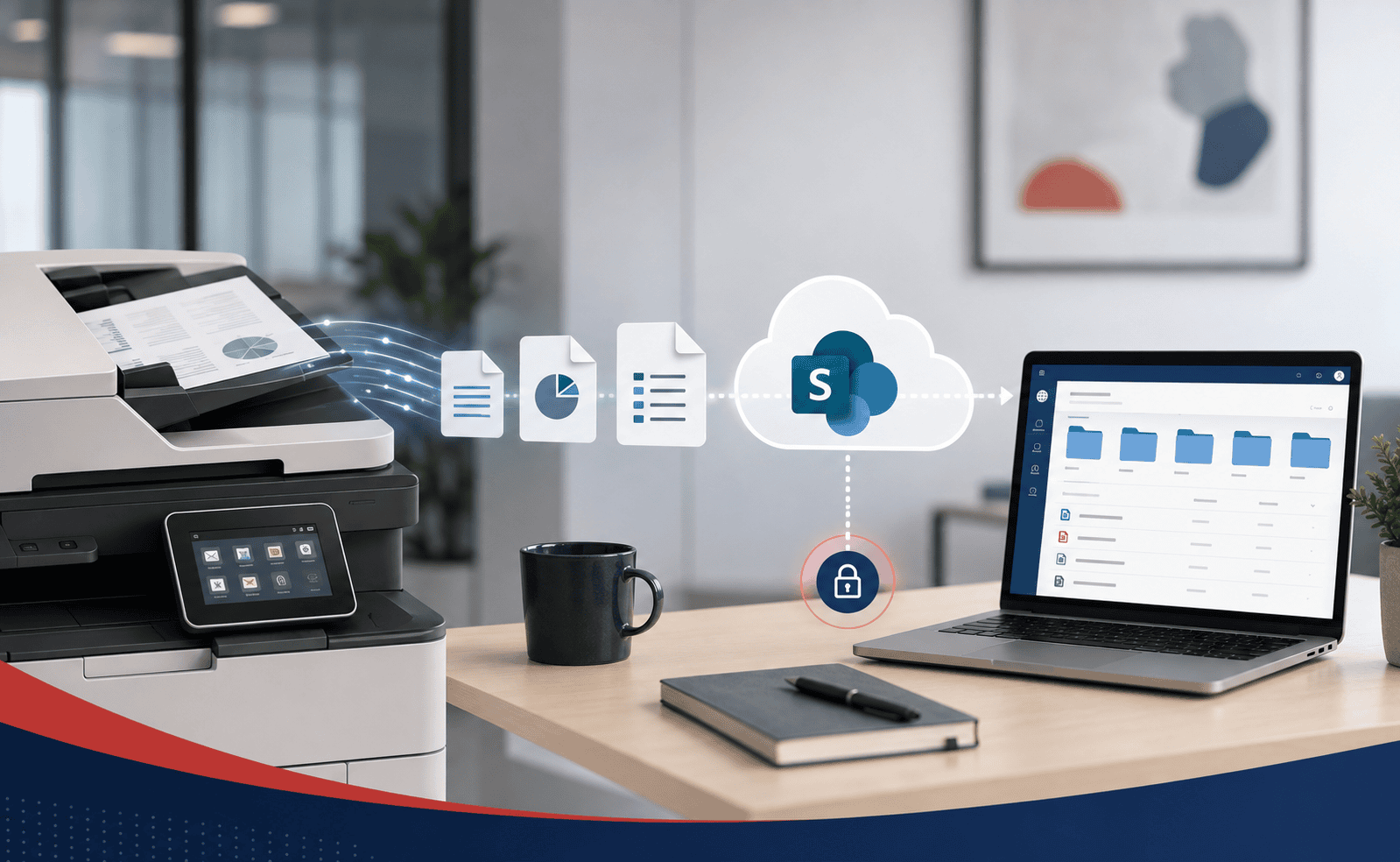
Scan to SharePoint is a workflow that allows documents scanned at an office multifunction device (MFD) to be transferred into a Microsoft SharePoint document library.
Instead of:
Scan document → receive email → download attachment → rename file → upload to SharePoint
the workflow can become:
Scan document → select destination → document appears in SharePoint
This removes several manual steps and can help businesses create a more consistent document management process.
Depending on the printer, Microsoft 365 environment and scanning software being used, employees may be able to select:
- A SharePoint site
- A department
- A document library
- A predefined folder
- A workflow button
- A document type
- A file format
- A file name
This means the scanner becomes another access point into the organisation's digital document workflow.
Why Businesses Are Moving Away From Scan to Email
Scan to email remains extremely common, but it is not always the most efficient method for documents that ultimately need to be stored centrally.
Consider an accounts department scanning supplier invoices.
With scan to email, an employee may have to:
- Scan the invoice.
- Email it to themselves.
- Open Outlook.
- Download the attachment.
- Rename it.
- Find the correct SharePoint location.
- Upload the document.
- Delete the original email.
Multiply that process across hundreds or thousands of scans each year and it creates unnecessary administration.
Scanning directly into SharePoint can significantly simplify the workflow.
A Typical Scan to SharePoint Workflow
A practical office setup might look something like this.
Step 1: Place the Document on the MFD
The employee places the document into the automatic document feeder or onto the scanner glass.
Modern office MFDs can handle a wide variety of material including:
- Invoices
- Purchase orders
- Delivery notes
- Contracts
- Application forms
- HR documents
- Customer records
- Signed agreements
For larger batches, the document feeder allows multiple pages to be scanned automatically.
Step 2: Select the SharePoint Workflow
Instead of choosing a generic "Scan to Email" button, the employee selects a predefined workflow from the touchscreen.
Scan to SharePoint → Accounts → Supplier Invoices
or
Scan to SharePoint → HR → Employee Records
The objective is to make the workflow simple enough that users do not need to understand the structure behind SharePoint.
Step 3: Choose the Required Scan Settings
The user may then select settings such as:
- Colour or black and white
- Single or double-sided
- Searchable PDF
- Resolution
- Document orientation
- File name
In some environments, many of these settings can be predetermined so employees simply press one button.
Step 4: The Document Is Processed
The multifunction printer scans the pages and converts them into the required digital format.
Depending on the workflow, Optical Character Recognition — commonly known as OCR — may also be used.
OCR converts scanned images into machine-readable text.
For example, a scanned invoice containing:
Invoice Number: INV-10384
can potentially become searchable within the document rather than existing purely as an image.
This can make finding archived paperwork significantly easier.
Step 5: The File Is Uploaded to SharePoint
The scanned document is then transferred into the configured SharePoint document library.
Employees with appropriate Microsoft 365 permissions can access it from their computer without needing to locate the physical original or search through someone's inbox.
Example: Accounts Payable Workflow
One of the most common applications is invoice processing.
Imagine an accounts team receiving paper supplier invoices.
A predefined button on the multifunction printer could be configured as:
Supplier Invoices
The employee scans the document and the system sends the PDF directly into:
Finance → Accounts Payable → Supplier Invoices
From there, the organisation may be able to use Microsoft 365 tools such as:
- SharePoint
- Microsoft Teams
- Power Automate
- Power Apps
- Microsoft Lists
to build additional workflows around the document.
For businesses already using Microsoft 365, this can create a much more connected process between office hardware and cloud systems.
Scan to SharePoint vs Scan to OneDrive
Another common question is whether documents should be scanned to SharePoint or OneDrive.
OneDrive is designed primarily around an individual user's files.
SharePoint is designed around shared organisational information.
Therefore, a document that belongs to a department or business process will often make more sense in SharePoint.
Examples could include:
- Supplier invoices
- Customer contracts
- HR templates
- Project paperwork
- Delivery documentation
- Quality documents
- Company policies
By comparison, a document belonging specifically to one employee may be more appropriate in OneDrive.
SharePoint or OneDrive?
We explain the distinction in more detail in our guide: SharePoint vs OneDrive: What's the Difference & When to Use Each?
Getting this structure right before deploying scanning workflows is important. Otherwise, organisations can simply recreate the same messy filing systems they had previously, only in the cloud.
Can Every Multifunction Printer Scan Directly to SharePoint?
Not necessarily.
The exact options depend on several factors including:
- Printer manufacturer
- Printer model
- Age of the device
- Firmware version
- Microsoft authentication requirements
- Available printer applications
- Third-party scanning software
- Network configuration
Some newer multifunction printers provide dedicated cloud connectors.
Others may require document management software or an intermediary workflow platform.
Older equipment may only support traditional protocols such as:
- SMB network folders
- FTP
- SMTP email
This is one reason businesses reviewing their printer fleet should consider integration with Microsoft 365 alongside traditional specifications such as print speed, paper capacity and finishing.
You can explore our range of multifunction and all-in-one printers if you are reviewing your current office equipment.
Microsoft 365 Authentication Can Be Important
Microsoft has progressively strengthened authentication requirements across Microsoft 365.
This matters because older printers were often configured using basic usernames and passwords.
Modern Microsoft environments may instead use:
- Modern Authentication
- OAuth
- Multifactor Authentication
- Conditional Access
- Device security policies
A scanner that worked perfectly with an older email or cloud configuration may therefore need to be configured differently when connecting to modern Microsoft 365 services.
This is particularly important when replacing an older copier or migrating to a new Microsoft 365 tenant.
Should You Create One Big Scan Folder?
Usually, no.
A common mistake is creating a generic destination such as:
Scanned Documents
and allowing every department to send documents into it.
After several months this often becomes difficult to manage.
A better approach is to build scan destinations around real business workflows.
Finance
- Supplier invoices
- Purchase orders
- Expenses
- Credit notes
HR
- Employee records
- Training documentation
- Recruitment documents
Operations
- Delivery notes
- Site paperwork
- Job sheets
Sales
- Signed contracts
- Customer forms
- Application documents
The simpler the choice presented on the MFD touchscreen, the more likely employees are to use the process correctly.
Naming Scanned Documents
File naming is another important consideration.
A folder containing files called:
SCAN001.pdf
SCAN002.pdf
SCAN003.pdf
is not particularly useful.
A structured naming process can make documents far easier to find.
Examples might include:
SupplierName-InvoiceNumber-Date.pdf
or
CustomerName-Contract-Date.pdf
Some scanning systems allow employees to enter this information at the multifunction printer.
More advanced document capture systems may extract information automatically using OCR.
Searchable PDF Can Make a Big Difference
One of the most useful scanning features for businesses moving towards digital document storage is searchable PDF.
A normal scanned PDF may simply contain an image of each page.
A searchable PDF uses OCR to create a hidden text layer.
That means users may be able to search for words contained inside the scanned document.
For example, searching SharePoint for:
ABC Engineering
could potentially return an invoice that was originally received and scanned as paper.
This can make large document libraries substantially easier to work with.
Consider SharePoint Permissions Before Deployment
Scanning documents into SharePoint also requires sensible permission planning.
Not every employee should necessarily have access to every document library.
For example:
- HR records may require restricted permissions.
- Financial documents may only be accessible to accounts staff.
- Management documents may require separate access.
- Project documents may only be available to specific teams.
The scanning workflow should therefore complement the organisation's wider Microsoft 365 permissions structure.
A multifunction printer should not unintentionally become a method of bypassing existing access controls.
Scan to SharePoint and Microsoft Teams
Businesses using Microsoft Teams may already be using SharePoint without necessarily realising it.
Files stored within many Teams channels are backed by SharePoint document libraries.
This creates interesting possibilities for scanning workflows.
For example, a construction or engineering business could potentially configure a scan workflow that places project documents into the appropriate SharePoint location associated with a Teams workspace.
Employees working remotely could then access that documentation without needing to visit the office.
What About PaperCut?
Organisations using print management platforms such as PaperCut can potentially take scanning considerably further.
Depending on the solution and configuration, workflows can incorporate functionality such as:
- User authentication
- Secure scanning
- Personalised scan destinations
- OCR
- Searchable PDF
- Automated naming
- Preconfigured workflows
- Departmental scanning buttons
- Cloud storage integration
The advantage is that printing and scanning become part of the same managed document environment rather than two completely separate systems.
Security Considerations for Office Scanning
Modern multifunction printers should be treated as network-connected devices, not simply printers.
They can contain:
- Address books
- Network credentials
- Email settings
- Stored documents
- Scan destinations
- User authentication data
Businesses should therefore consider:
- Strong administrator passwords
- Firmware updates
- Network segmentation
- Secure protocols
- User authentication
- Restricted administrative access
- Microsoft 365 security policies
- Removal of obsolete scan credentials
This is particularly important for businesses handling confidential customer, financial or employee information.
When Should a Business Consider Scan to SharePoint?
Scan to SharePoint can be particularly useful where a business:
- Already uses Microsoft 365.
- Stores departmental files in SharePoint.
- Scans paperwork regularly.
- Wants to reduce internal email attachments.
- Has multiple employees accessing documents.
- Wants consistent digital filing.
- Is working towards reducing paper storage.
- Needs searchable electronic records.
- Wants to automate document processes.
The biggest benefit often comes from removing repetitive administration.
Saving one or two minutes on a scan may seem insignificant, but across hundreds of documents every month those savings can quickly accumulate.
Start With the Workflow, Not the Printer
The best Scan to SharePoint projects usually begin by understanding how documents actually move through the organisation.
Before configuring anything, ask:
- What documents are currently being scanned?
- Who scans them?
- Where do they eventually need to be stored?
- Who needs access?
- How should they be named?
- Does OCR need to be applied?
- How long must documents be retained?
- Could any part of the process be automated?
Only once those questions are answered should the scanning workflow be designed.
This avoids installing technology that technically works but does not improve the underlying business process.
Connecting Your MFD and Microsoft 365 Environment
Digital Office Group works across both office multifunction equipment and Microsoft 365 environments, which means we can look at the complete document workflow rather than viewing the printer and IT infrastructure separately.
Whether you are replacing an ageing copier, reviewing Microsoft 365, introducing SharePoint or simply trying to reduce manual document filing, the right combination of equipment and workflow design can make everyday scanning considerably easier.
Explore Related Digital Office Group Services
Want to Make Scanning Into SharePoint Simpler?
If your team is still scanning documents to email, manually downloading attachments and moving them into SharePoint, there may be a much easier workflow.
Digital Office Group can review your existing multifunction printers, Microsoft 365 environment and document processes to identify practical ways to automate scanning and improve document management.
Talk to our team about Scan to SharePoint, Microsoft 365 integration, multifunction printers and document workflow solutions.
Talk to Digital Office Group